How to Log In with a Magic Link and Access Settings

User should use test mail box 

Open the Test Mailbox

Log in Gmail -  osmotest@osmo.coach
password Coaching1!

‍

Authorization

  1. Open https://app.osmo.coach/
  2. Enter email (osmotest@osmo.coach)
  3. Click sent magic link 
  4. Go to the gmail box
  5. Click on link in mail

Meeting connection 

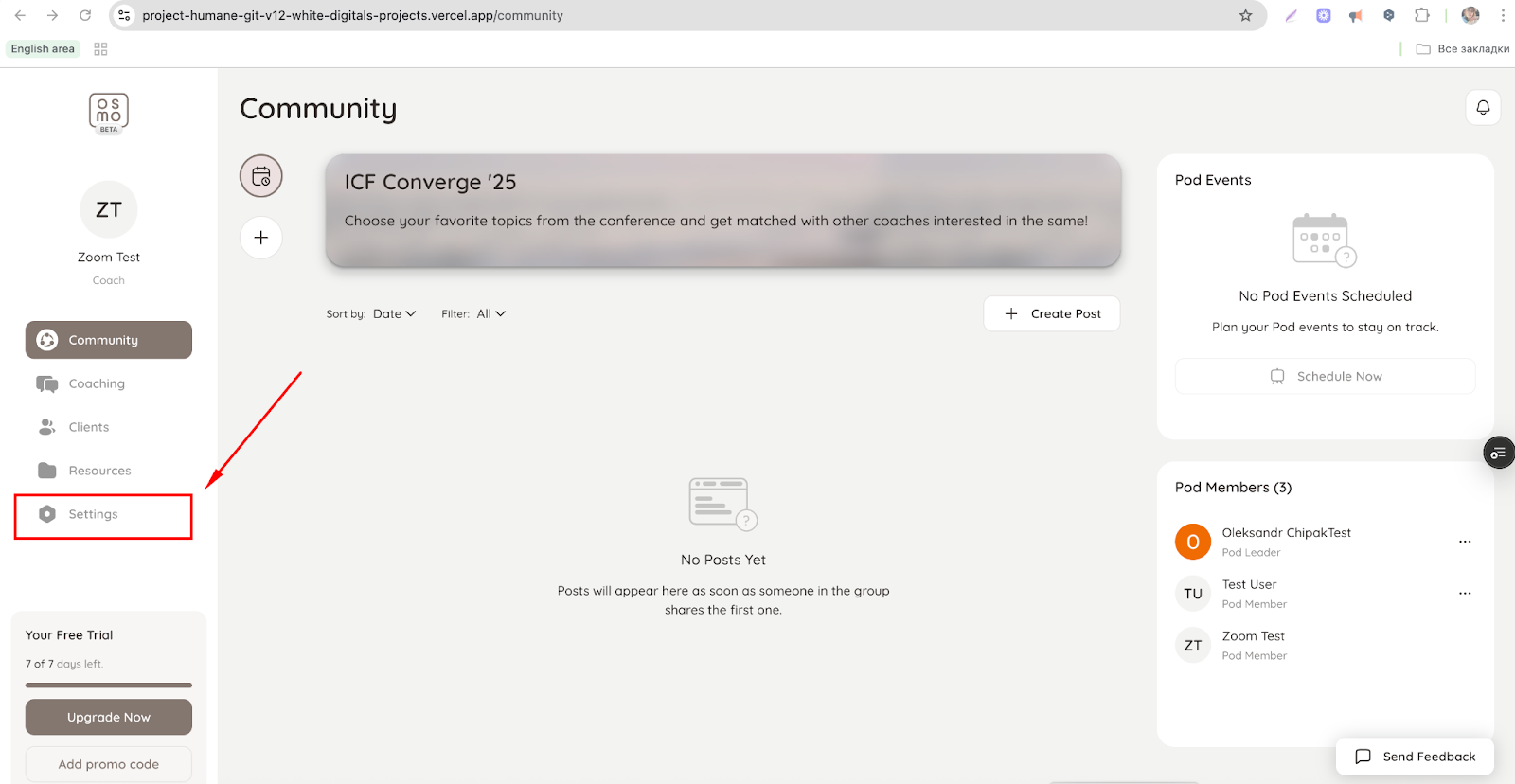
  1. Click on settings button 
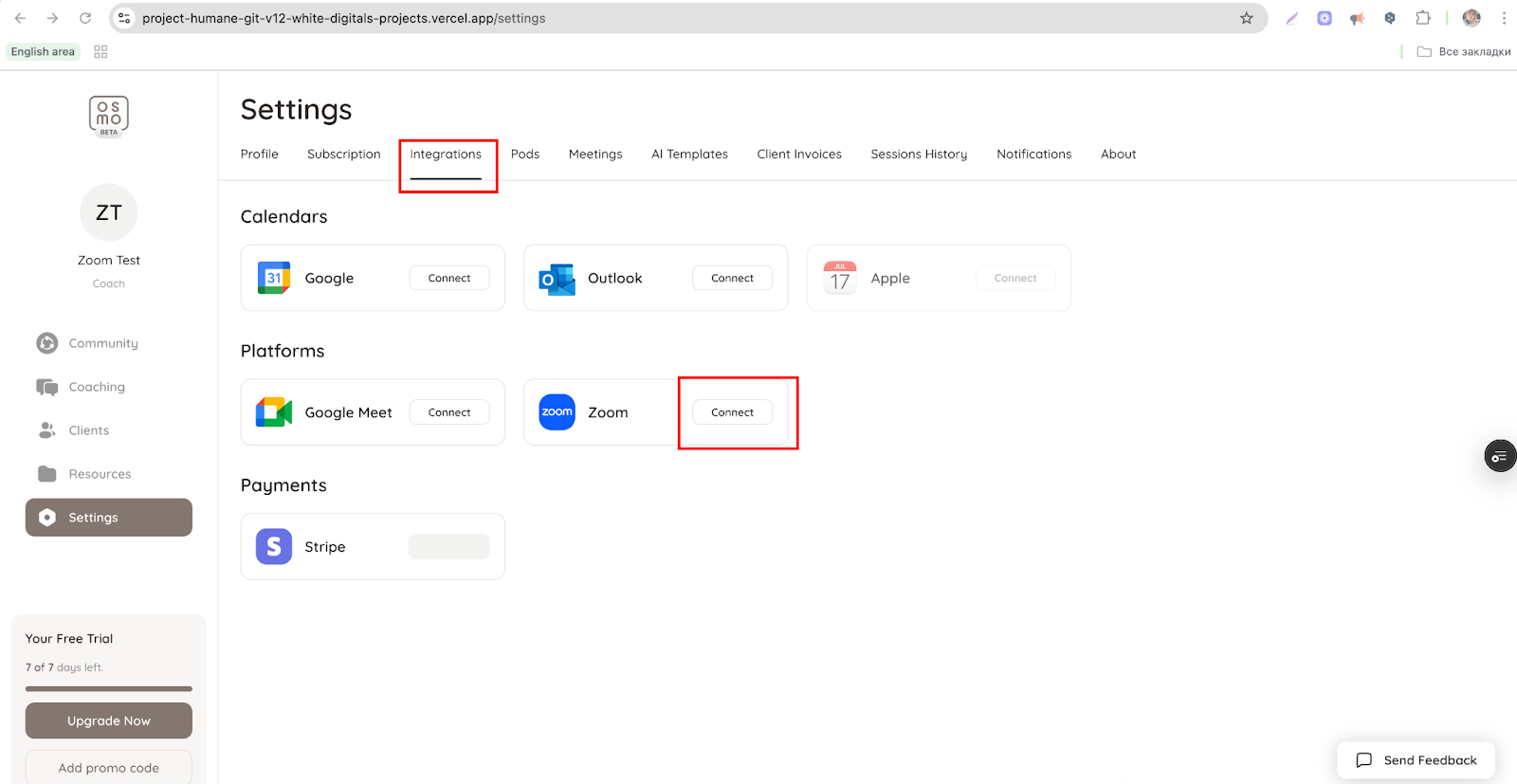
  1. Click integration tap 
  2. Click connect button 
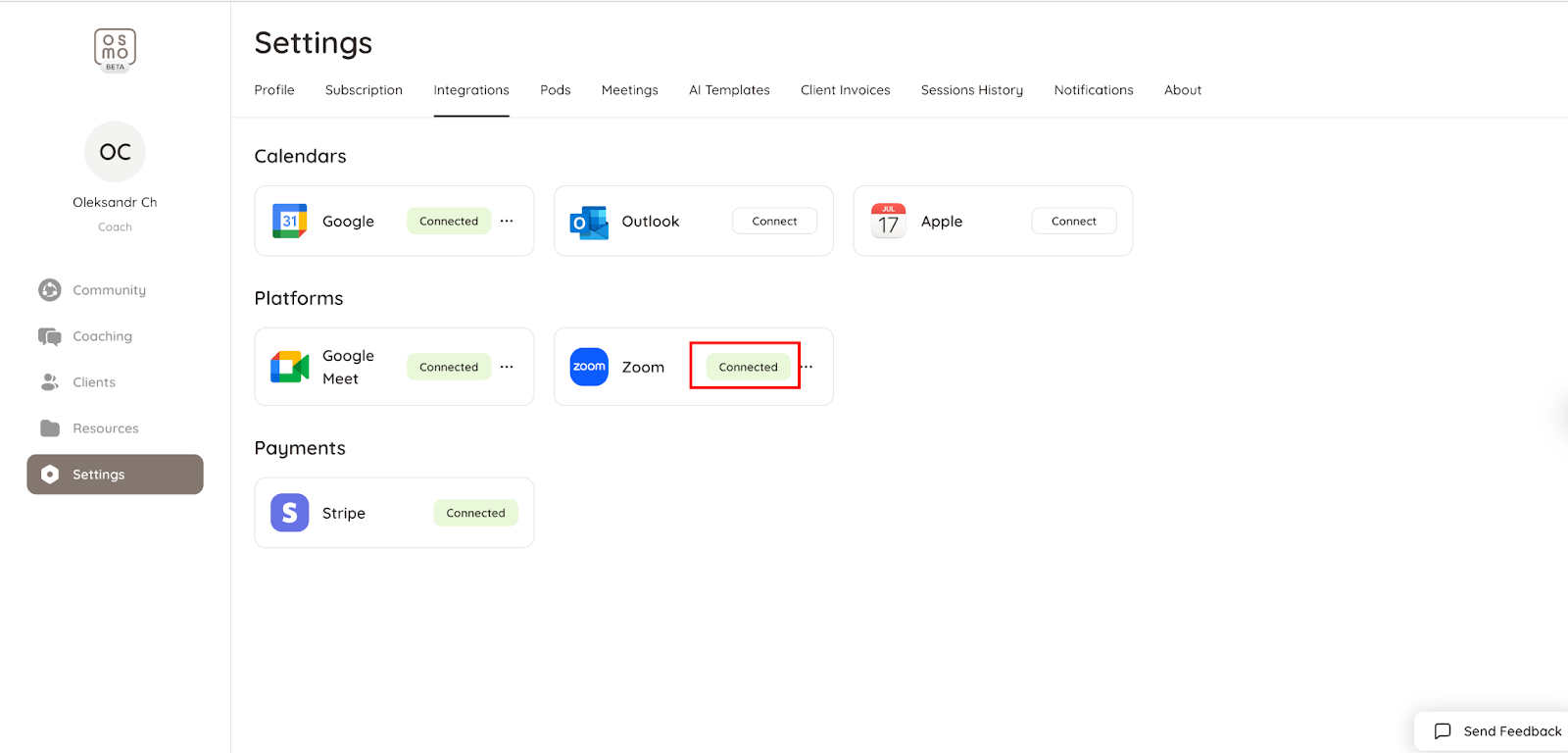
  1. Sign in your zoom account 
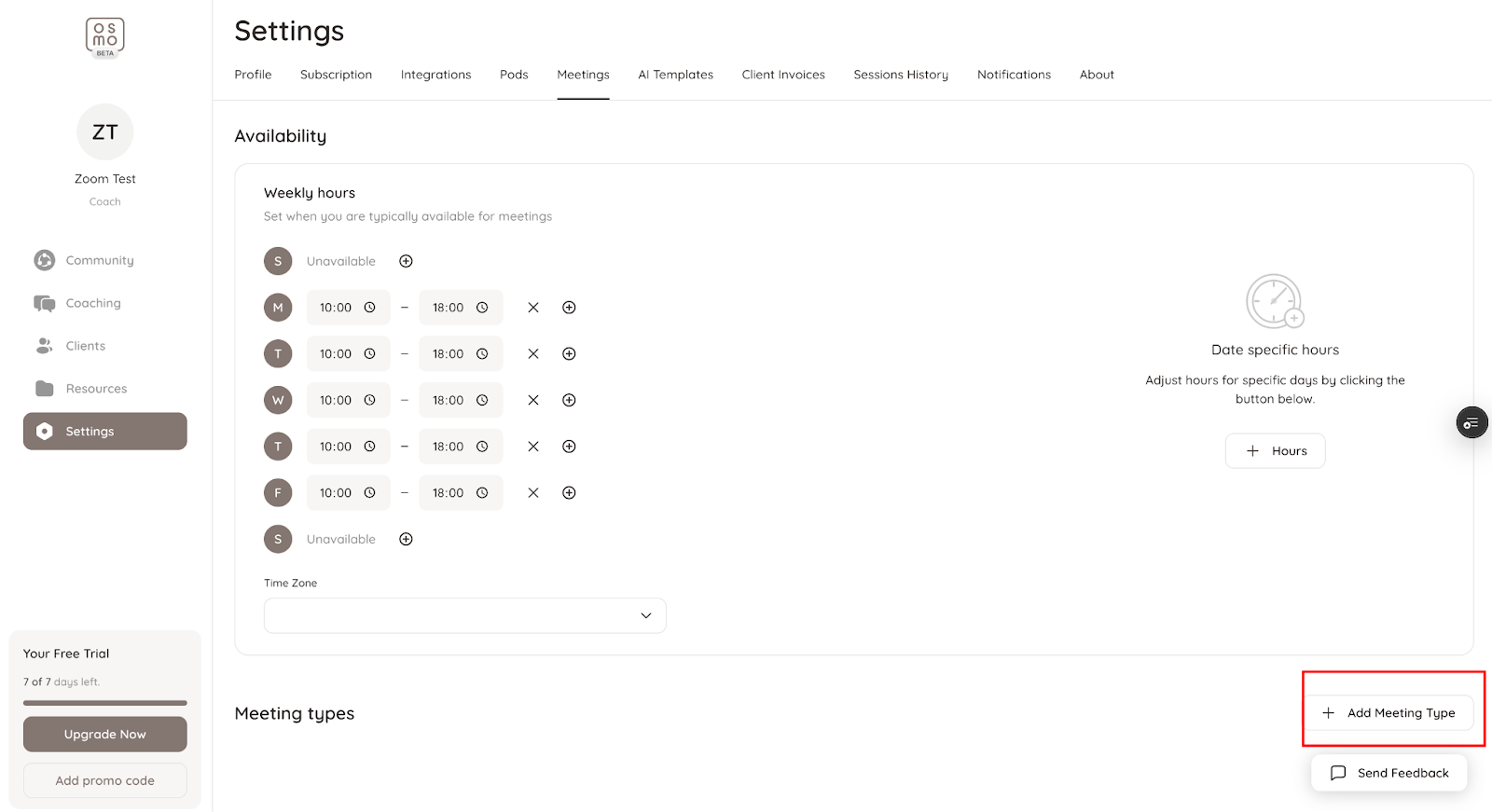
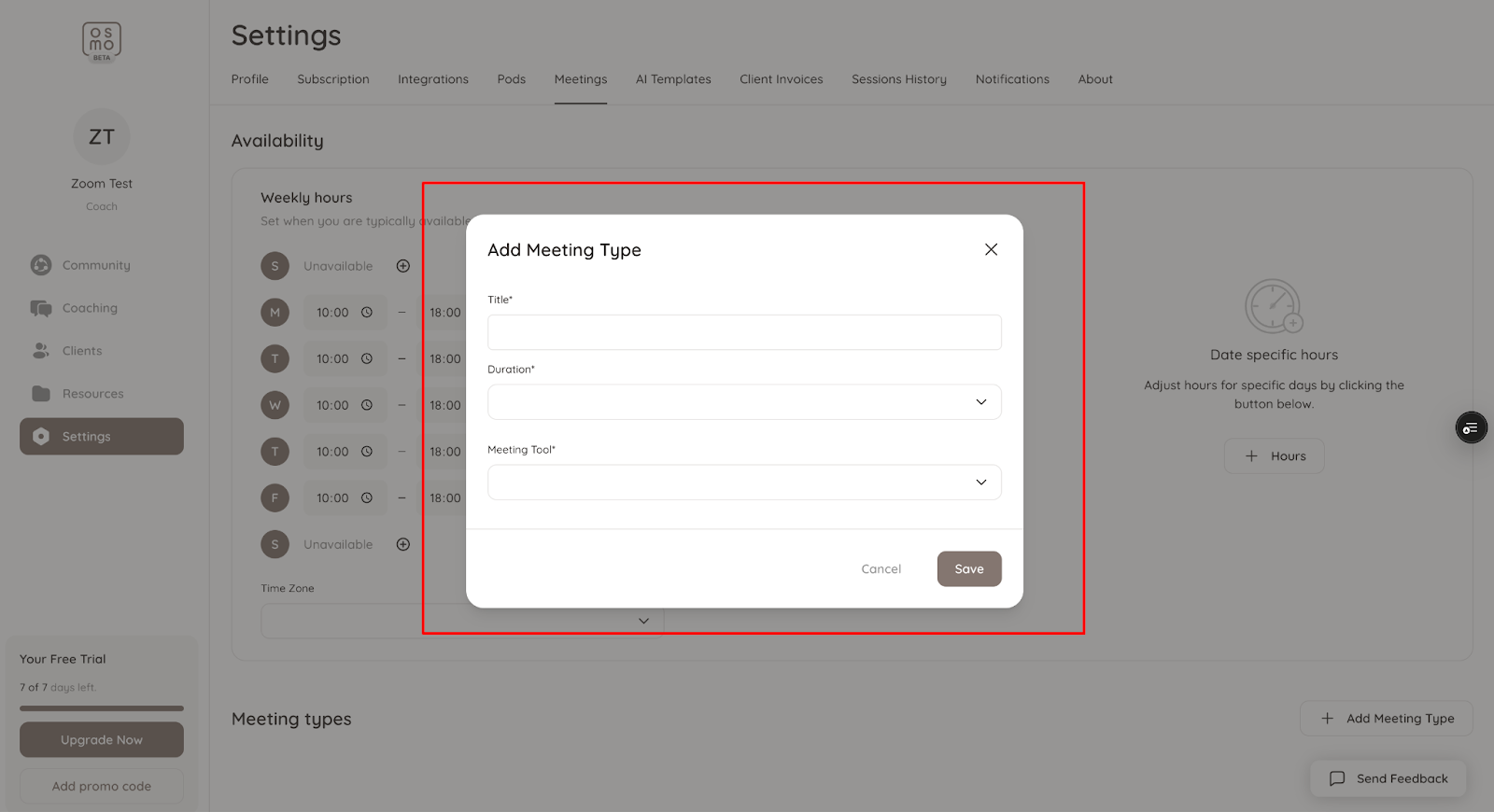
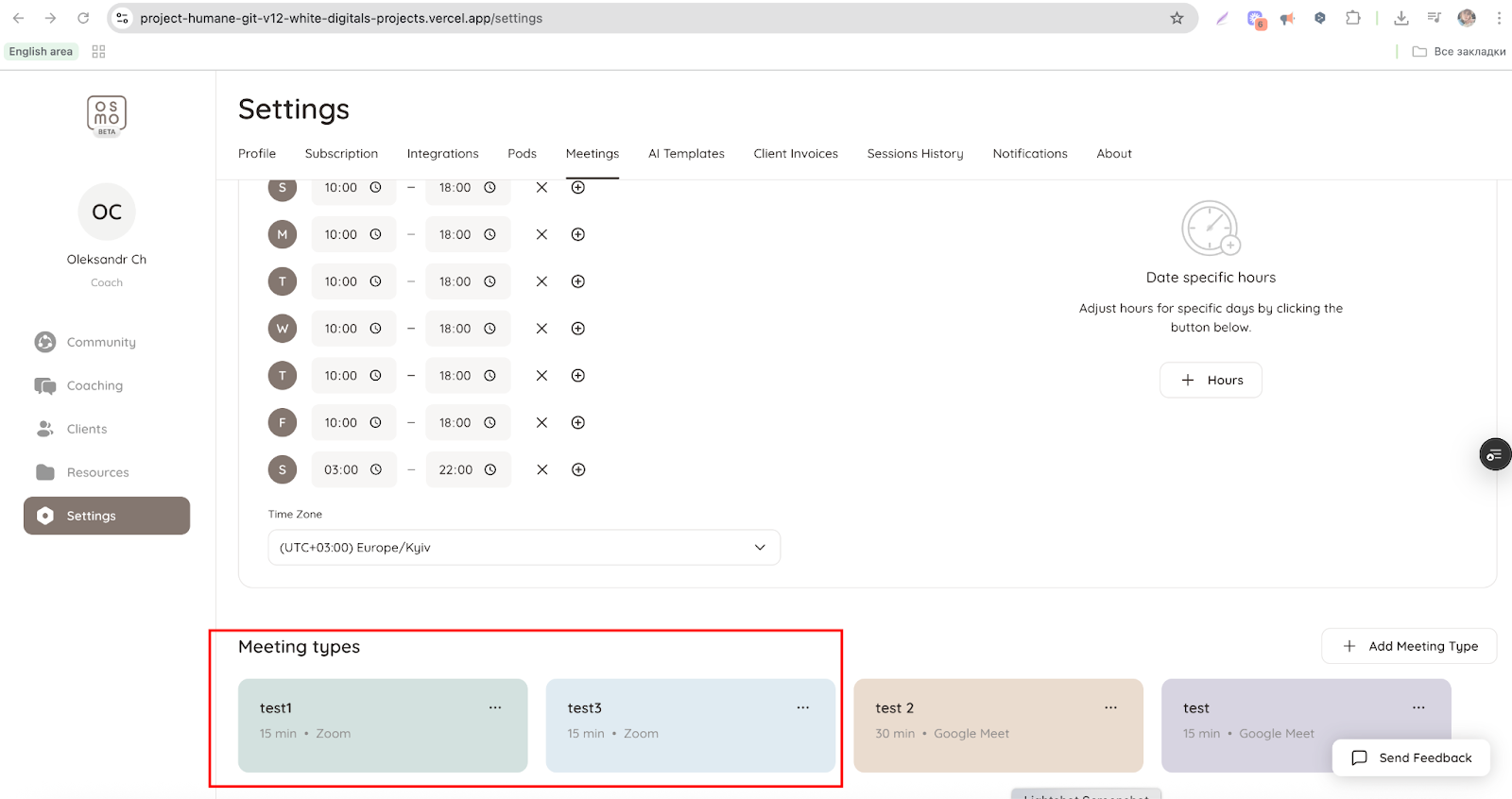
  1. Go to the Meeting tap 
  2. Click Add meeting type
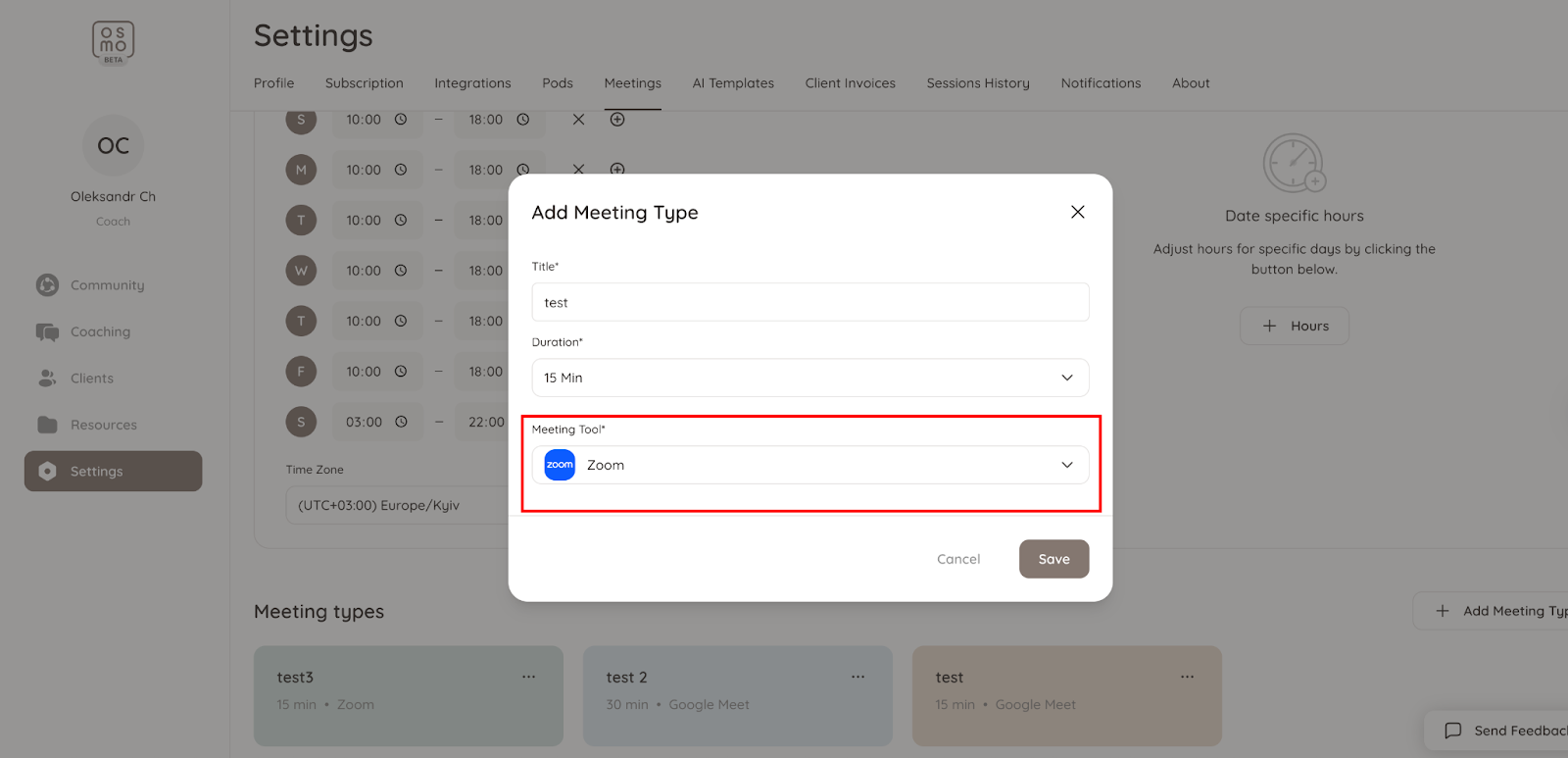
  1. Fill type meeting pop up 
  1. Click Save button 
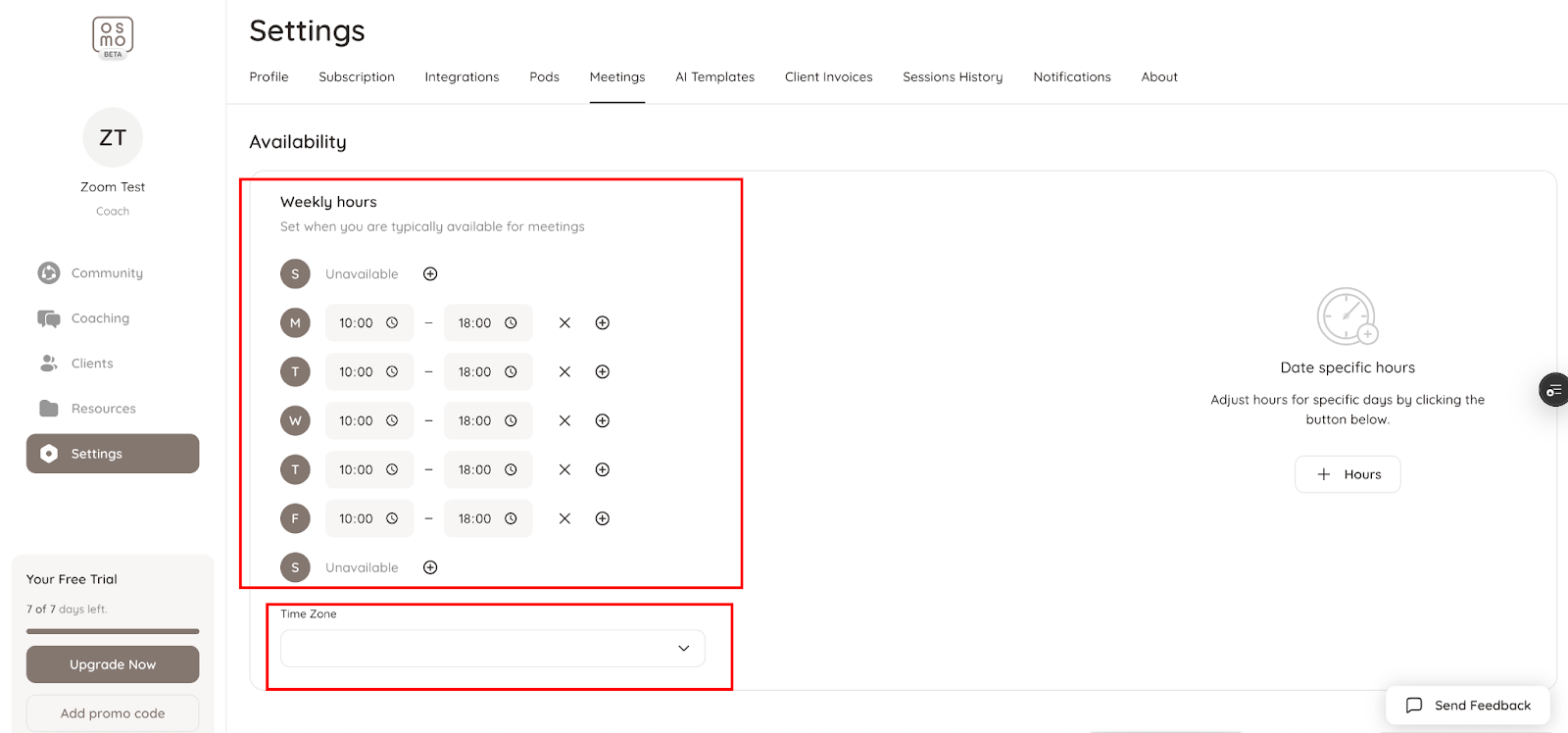
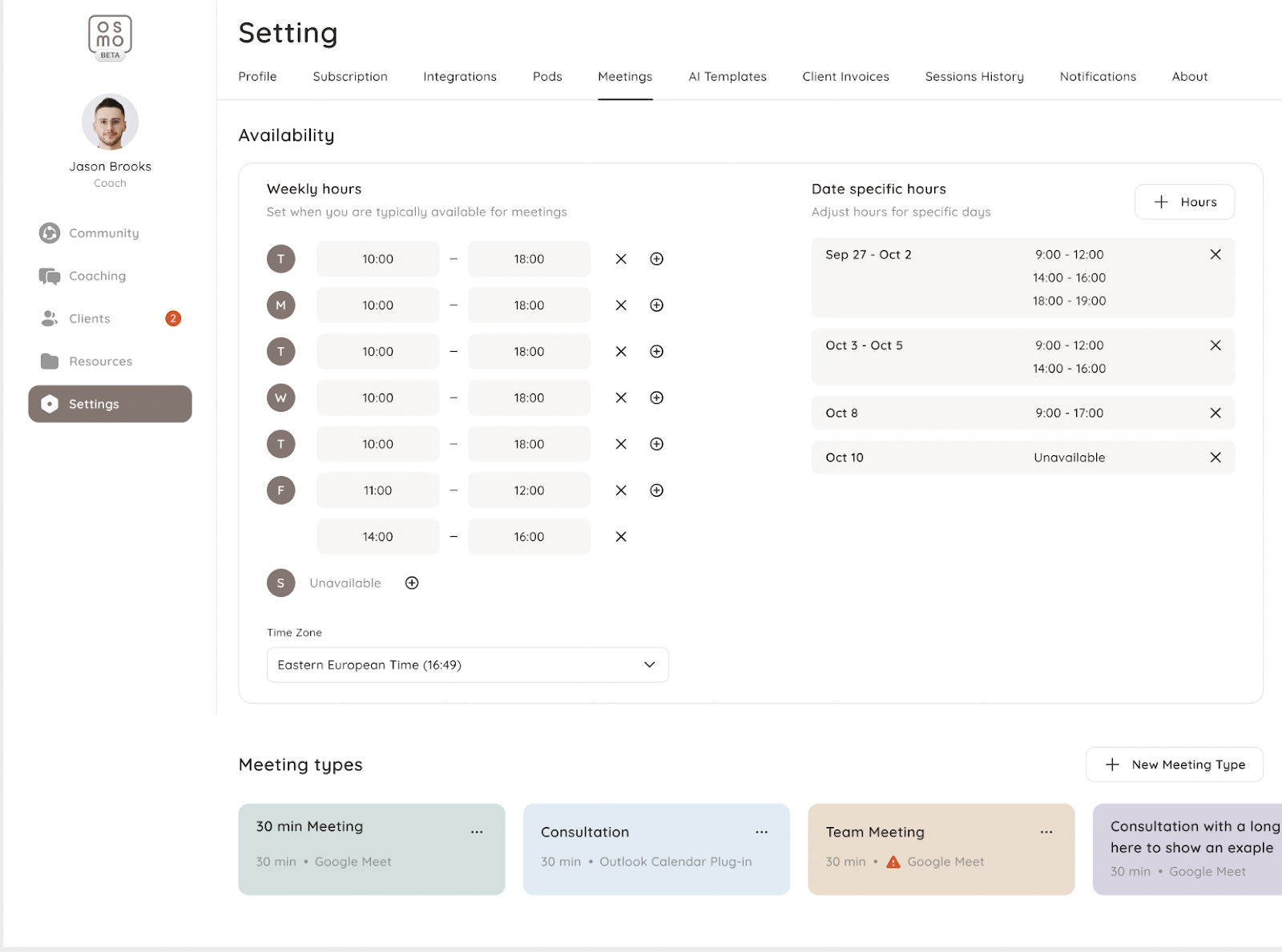
  2. Add time zone and change hours (if its need) 

‍

EXAMPLE:

‍

Creating a call

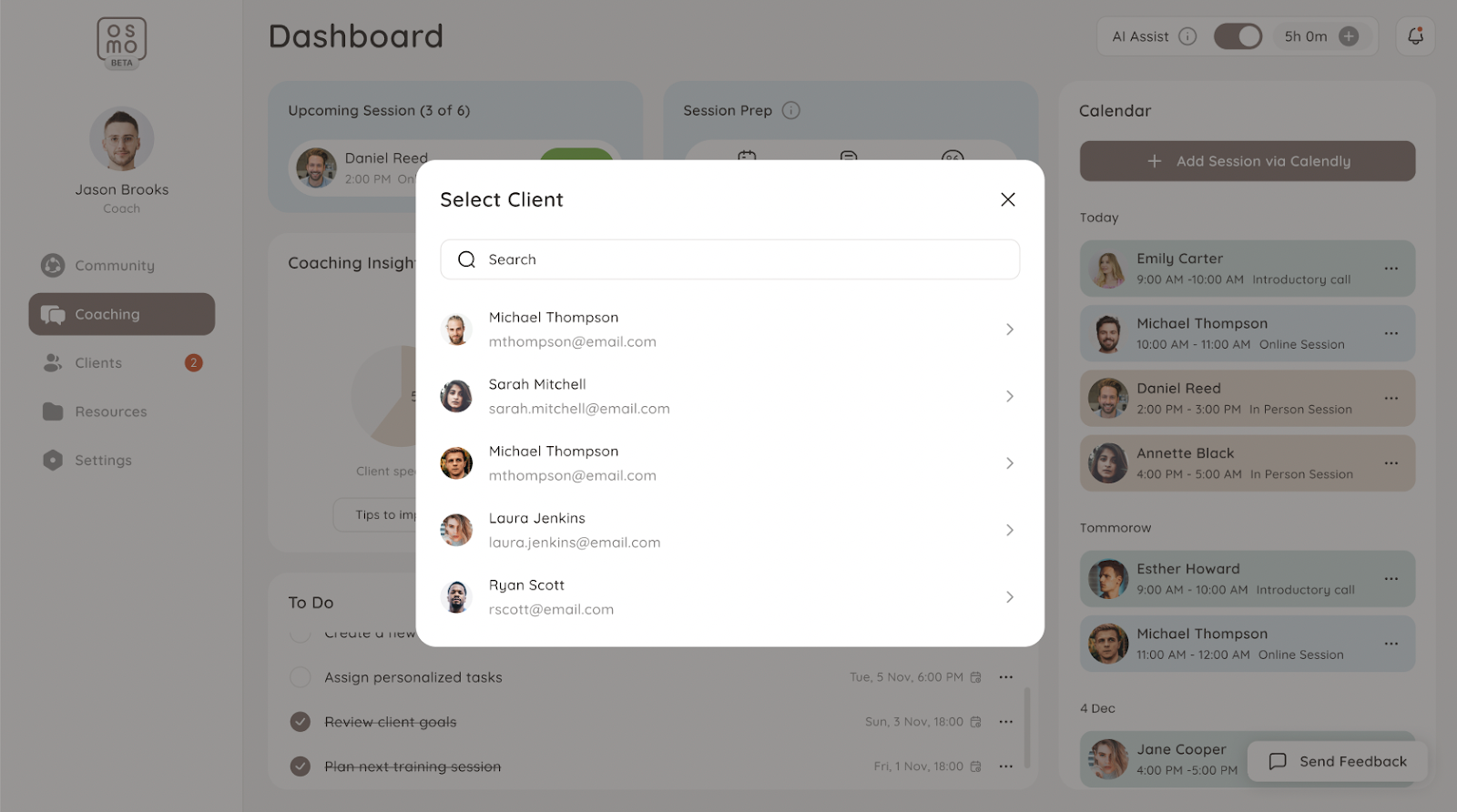
  1. Go to the coaching part
  2. Click Add session via Calendly button 
  1. Choose client 
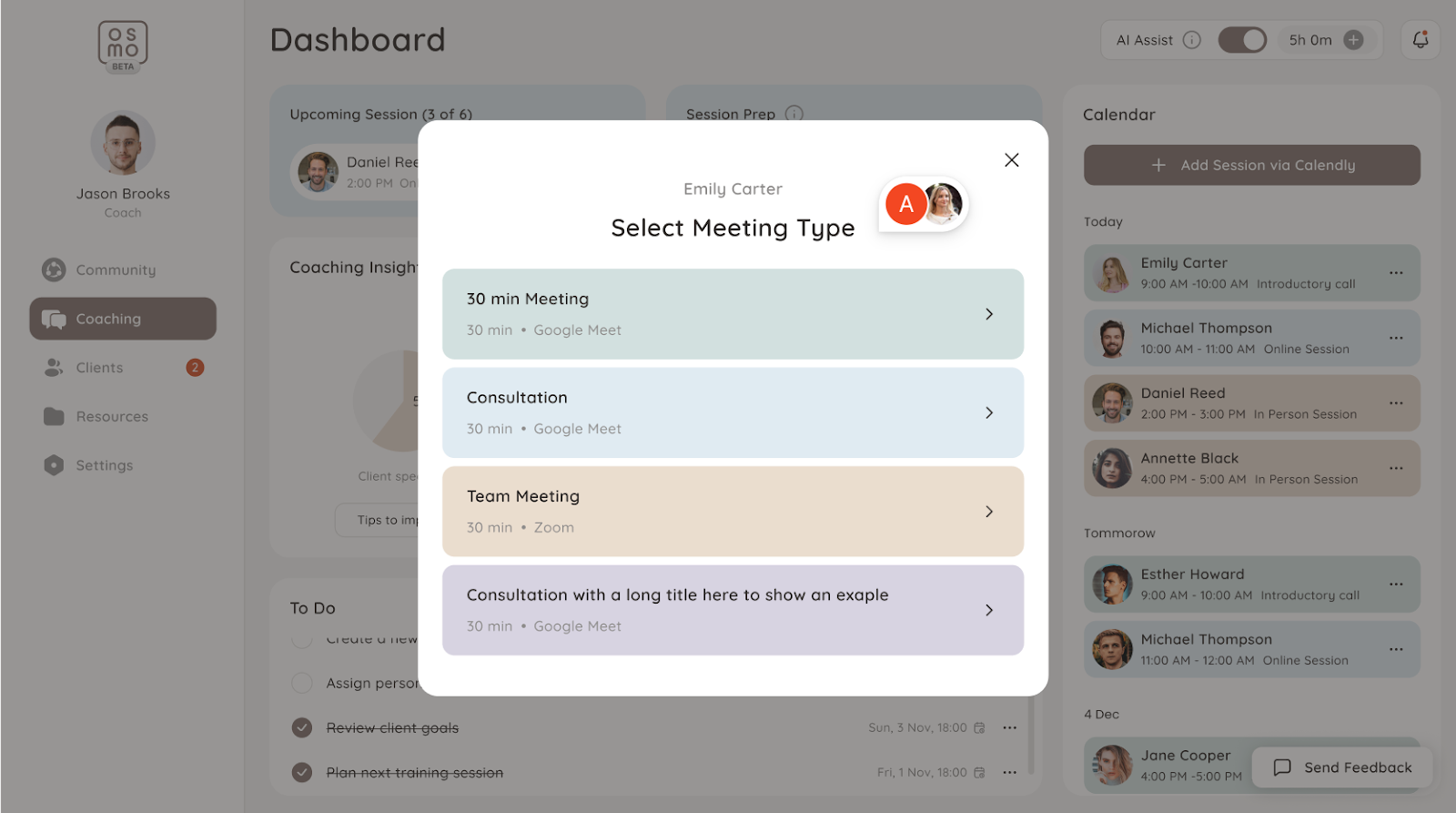
  2. Choose meeting type for your client 
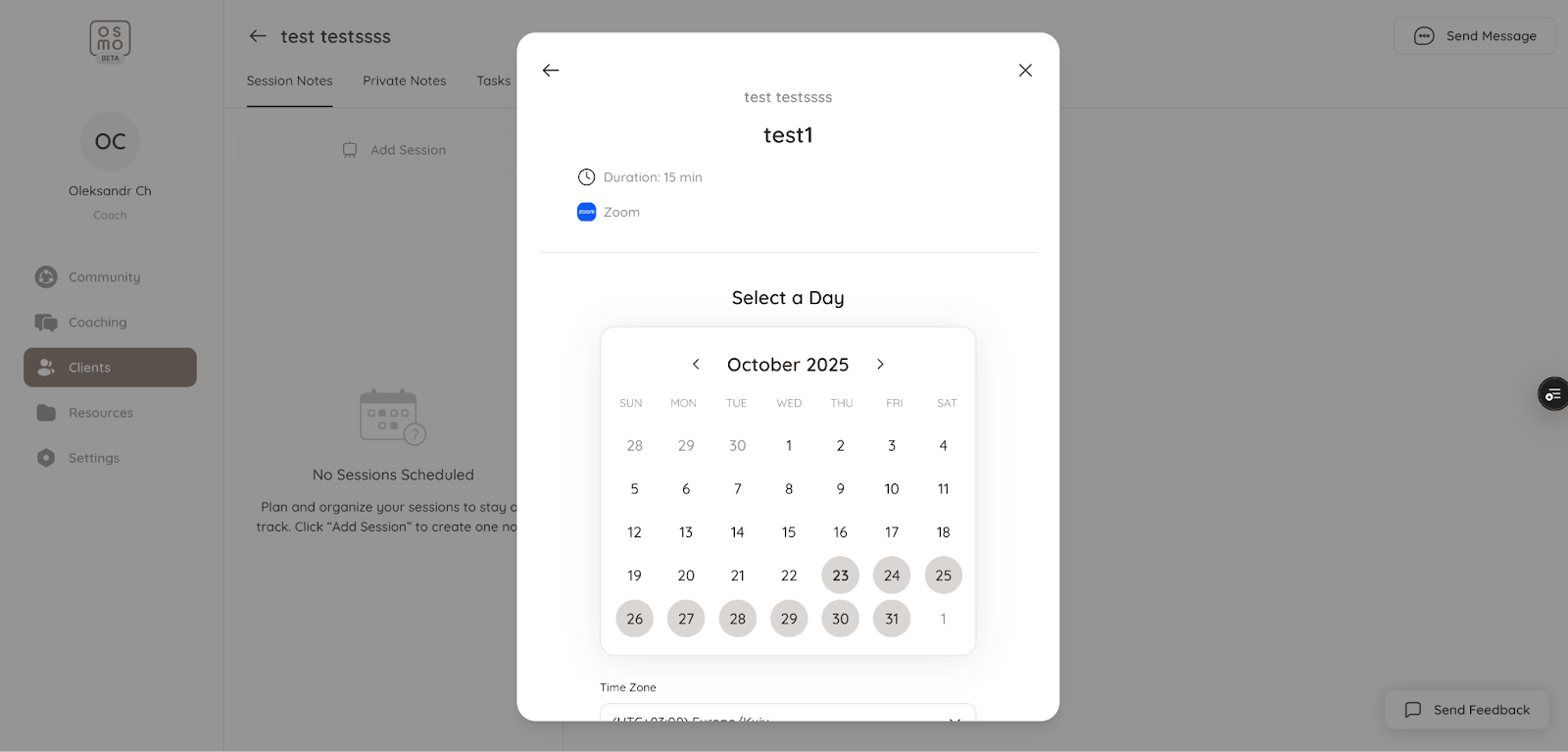
  1. Select day
EXAMPLE:
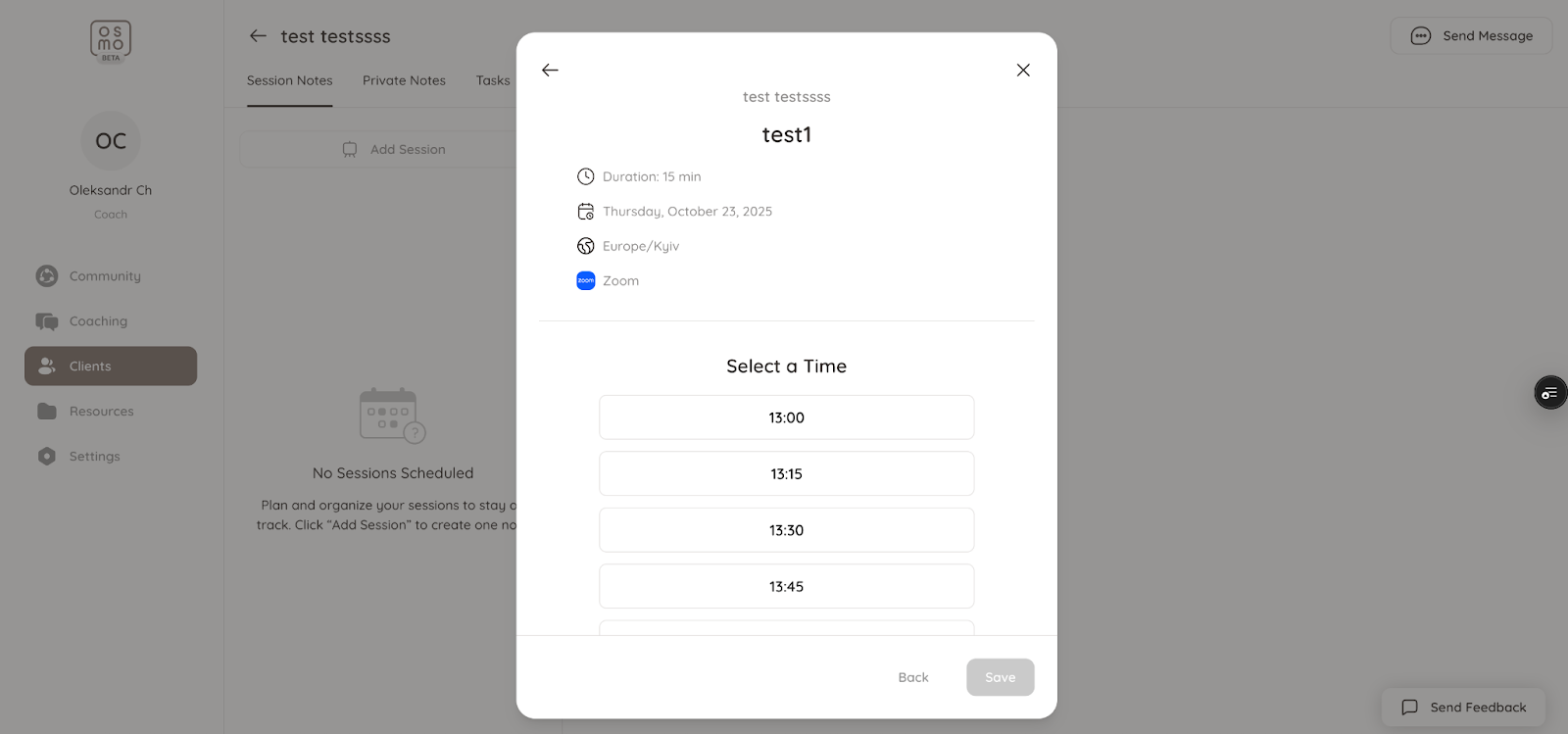
  1. Select time
  2. Click save 
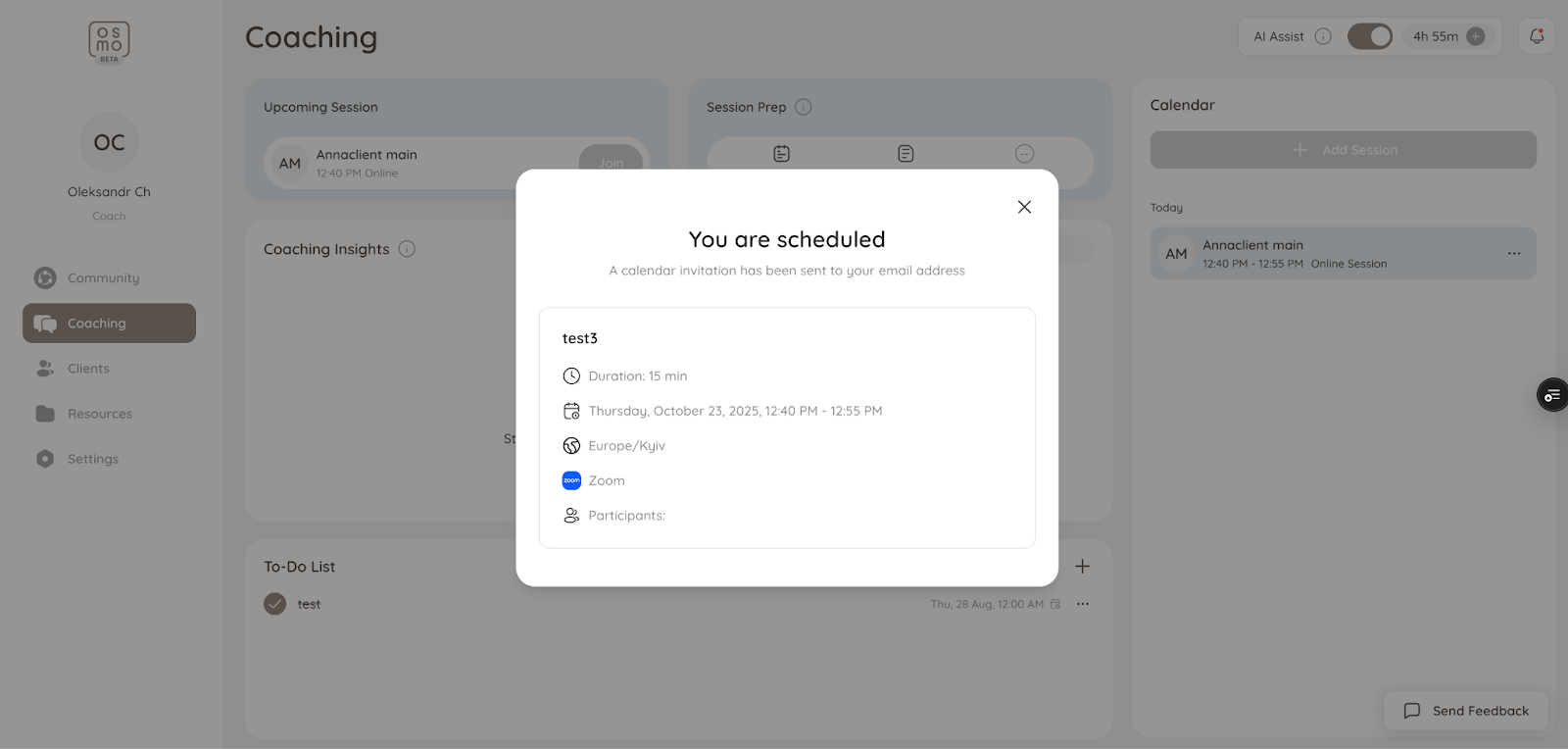
  1. Popup will appear about successful scheduled 
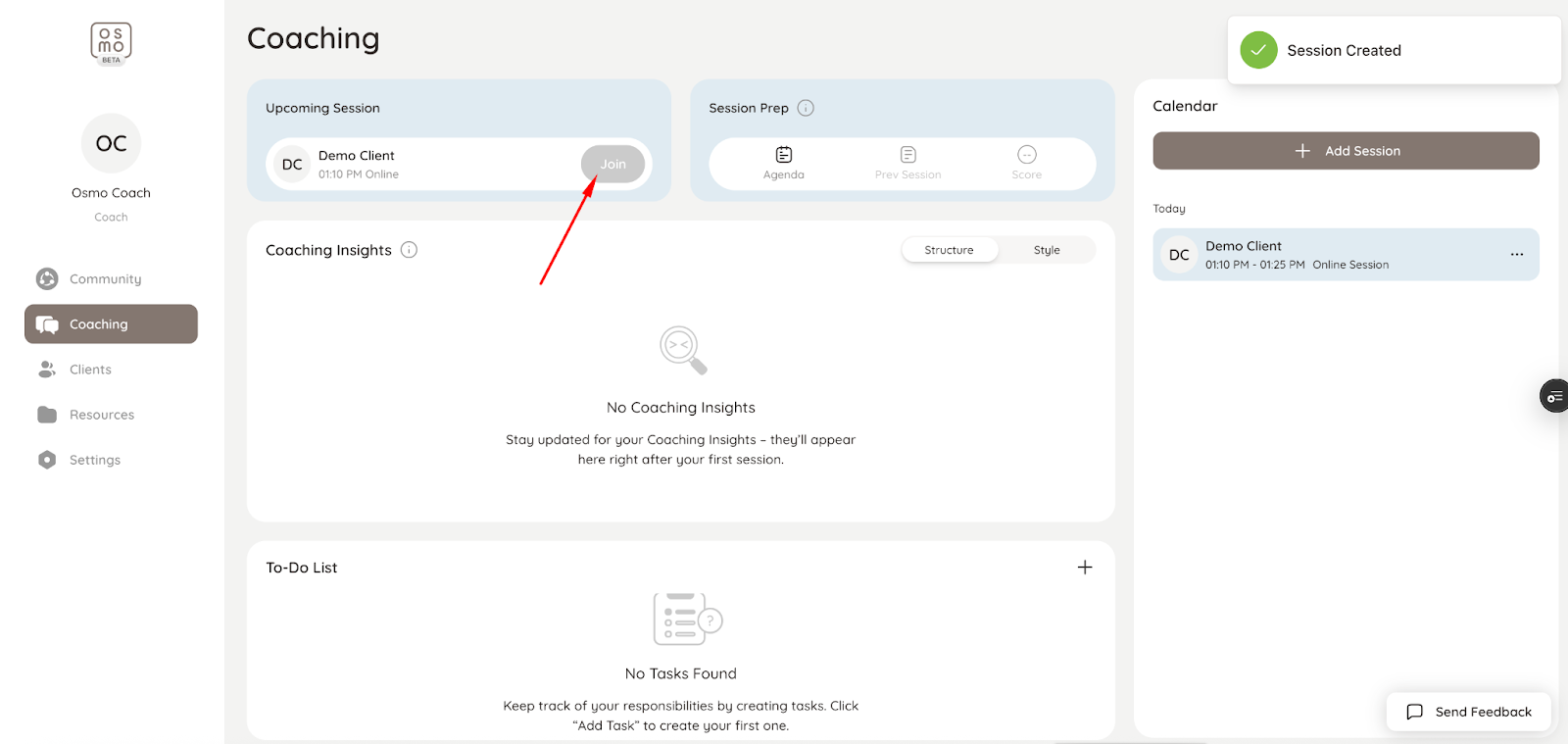
  1. Click Join button 

‍